CollageCraft: the collage and carousel maker for iPhone and iPad
Photo Editor, Carousel & Story
CollageCraft (listed on the App Store as Collage Maker: Grid & Layout) skips the sign-in screen that many collage apps open with — you can start adding photos right away. It turns a handful of pictures into a collage, a story or a swipeable carousel on iPhone or iPad, and it covers more ground than Instagram's own layout tool: travel recaps, before-and-afters, pet photos or a plain photo dump.

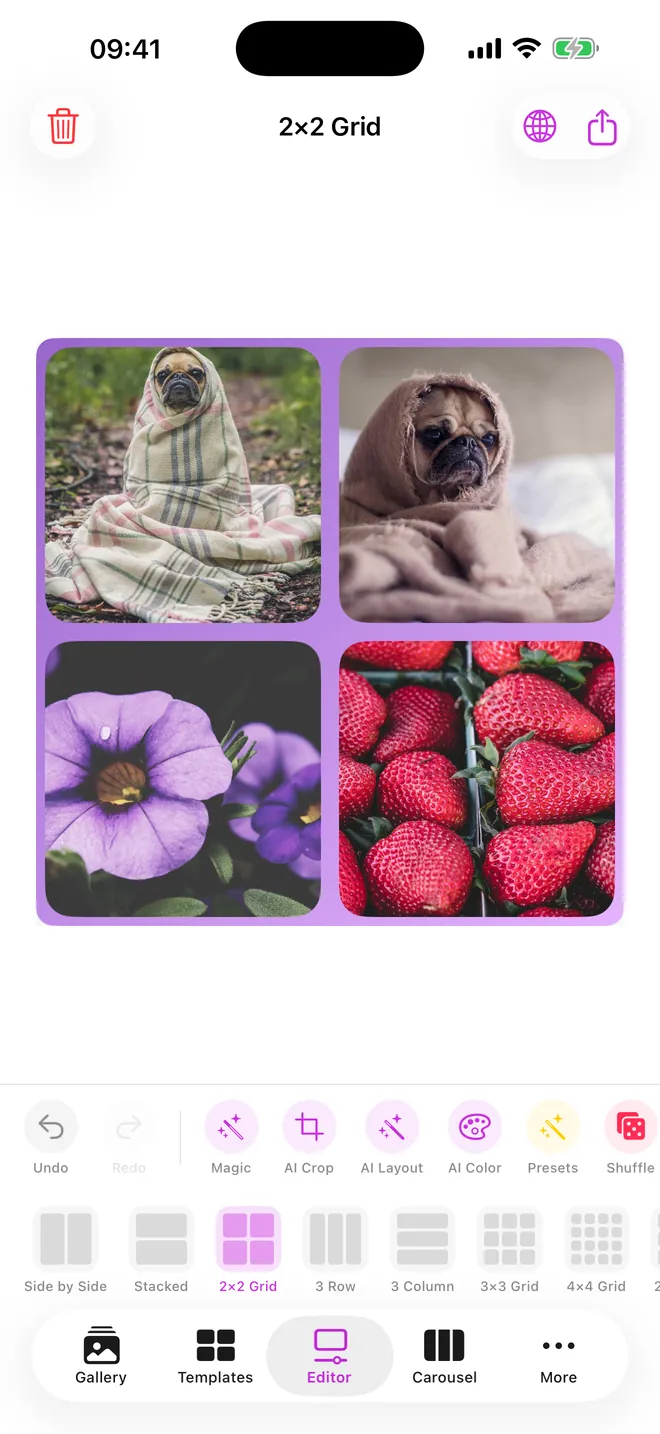
Collage editor
Four photos, one layout
Drag, rotate, filter, add text and stickers
Templates
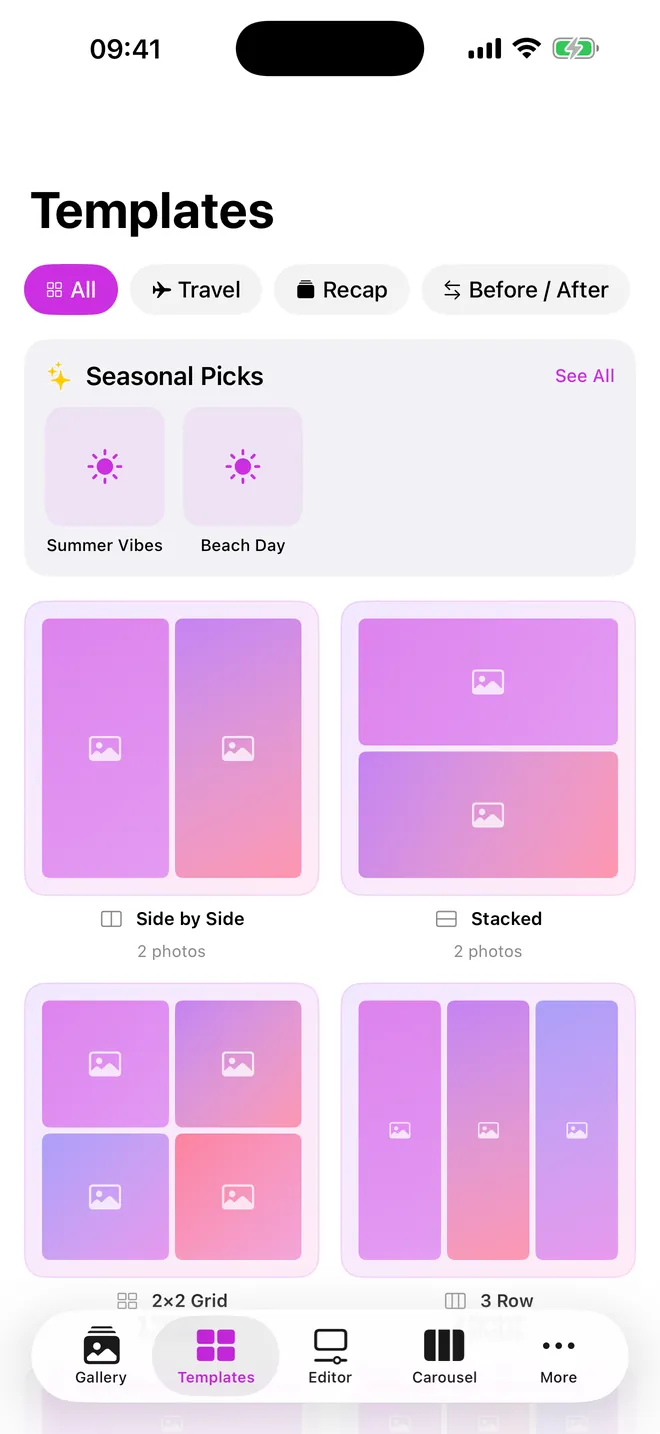
280+ layouts, ready to fill
Grids and mosaics for 1 to 30 photos
Your collages
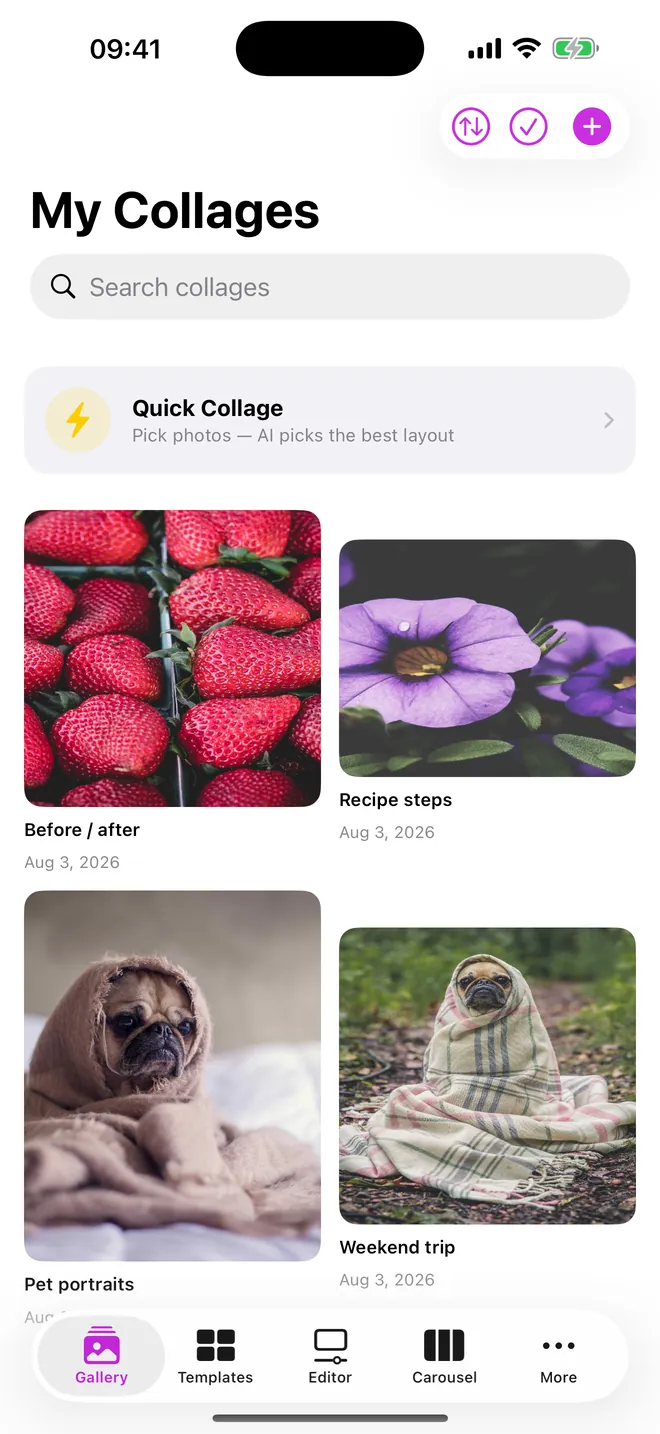
Every collage, saved
Search them, or start a Quick Collage
What can you make with it?
288 built-in layouts, for anywhere from 1 to 30 photos. They're grouped into categories under the Templates tab — plain grids, mosaics, social formats, creative and scrapbook styles, seasonal designs, shapes, and themed sets like Before / After, Fitness, Recap and travel.
- Collages: drop photos into a layout, then drag, scale, rotate or flip each one, change spacing, corners, borders and background, and add text, stickers and shapes.
- Carousels: the Carousel tab builds a multi-slide post of up to 10 slides, mixing photo slides with text, quote and title slides.
- Panorama splits: Split cuts one wide photo into 2, 3, 4, 6 or 9 equal tiles that line up when people swipe.
- Social sizes: Export for Social renders the collage at ready-made sizes for Instagram, Facebook, TikTok, X, Pinterest, YouTube, Snapchat, LinkedIn and WhatsApp.
- Looks: 14 filters plus brightness, contrast, saturation, warmth, sharpness and vignette, and one-tap Presets.
How do you make your first collage?
- Open the Templates tab and pick a category, or scroll All. Each card shows how many photos it holds.
- Tap a layout. The editor opens with empty slots marked Tap to add.
- Tap the photo-plus icon at the top to fill every slot at once, or tap a single slot to choose one picture.
- Tap AI Layout if you want the app to suggest a layout that fits your photo count, and AI Crop to re-centre each photo on faces.
- Tap the share icon to open Export, choose the Quality, then tap Save to Photos or Share.
What is free and what does Pro add?
Free covers every layout, the whole editor, filters, text and stickers, the carousel maker, AI Layout, AI Crop, and export at HD (1,080 px) or 2K (2,048 px) with no watermark. Some layout cards show a small crown; it's only a badge, and those layouts open and export on the free plan too.
Pro, which is optional, adds Remove BG (AI background removal), 4K and Poster export (4,096 and 6,144 px), print sizes from a 4x6 photo to an 18x24 poster at 300 dpi, transparent PNG export, and no ads. It's sold as a subscription or a one-time purchase, and the price shown depends on your country.
The free version runs ads: a banner, a native ad in the template grid, a full-screen ad on every third export (so exports 3, 6, 9 and on), and sometimes one when you reopen the app. Watch one short video and they're all gone for 30 minutes, which is usually enough for one editing session.
Privacy, offline use and permissions
No account, no cloud upload. Background removal, AI Crop and AI Layout run on the device with Apple's Vision framework, so the app works with no signal at all. The internet only gets used to load ads and the purchase list.
Photos come in through the system picker, so the app never sees your whole library, just what you tapped. It asks for add-only Photos access to save the finished image, and iOS shows the usual tracking prompt; decline it and the app works exactly the same, the ads are just less targeted.
Where it stops: limits worth knowing
- Photo-only. No video, in a collage, a carousel slide or a split.
- Projects stay on whichever device made them; there's no iCloud sync pulling a half-finished collage from your iPhone onto your iPad.
- Each layout has a fixed slot count. To fit more photos, pick a layout built for that many rather than stretching the one you're on.
- iOS 17 or later only, and no Android, Mac or Apple Watch version.
How-to guides for Collage Maker
Questions people ask about Collage Maker
Is CollageCraft free?
Does it work on iPad?
Can I make a video collage?
Which formats can I export?
Does the app need internet?
Free and Pro
Free
- all 288 built-in layouts, including the ones marked 'premium' in code (that gate is not enforced anywhere)
- the full editor: drag/scale/rotate/mirror/layer, filters, adjustments, text, stickers, shapes, gradients/patterns, borders, frames
- Instagram Carousel maker
- Smart Layout AI and Smart Crop (also not gated, despite being listed as Pro-only in the store copy)
- HD and 2K export (1080-2048px), always watermark-free
- Carousel export: 'Feed preview' shows the slides as a 3-column profile grid before saving
Pro
- AI background removal (Vision subject cutout)
- 4K and Poster export (4096/6144px)
- print-size export (4x6 to A3/poster, 300dpi)
- transparent PNG export
- removes all ads
Pro is optional. Everything in the free list works without it.
What's new in 1.3.0
• Watch one short video and get 30 minutes with no ads at all — the sponsored card now really does go away • Pro stays unlocked even when you have no signal • No more full-screen ad when you come back from picking your photos • Home Screen shortcuts now speak your language • Every plan shows its real price in your own currency, and you can manage your subscription without leaving the app • One layout promised six photos but had room for only four. Two of your photos disappeared without a word. All six fit now. • Layout names are in your language. A third of them were still in English, and a few of the others said the wrong thing.
Privacy and support
Collage Maker works offline and does not require an account. Read the privacy policy and the terms for this app, or write to us if something is wrong.
Made by a small independent developer. Questions? Write to us from the support page.