Printer App: print, scan and make PDFs on iPhone and iPad
Scan, OCR & Print Anything
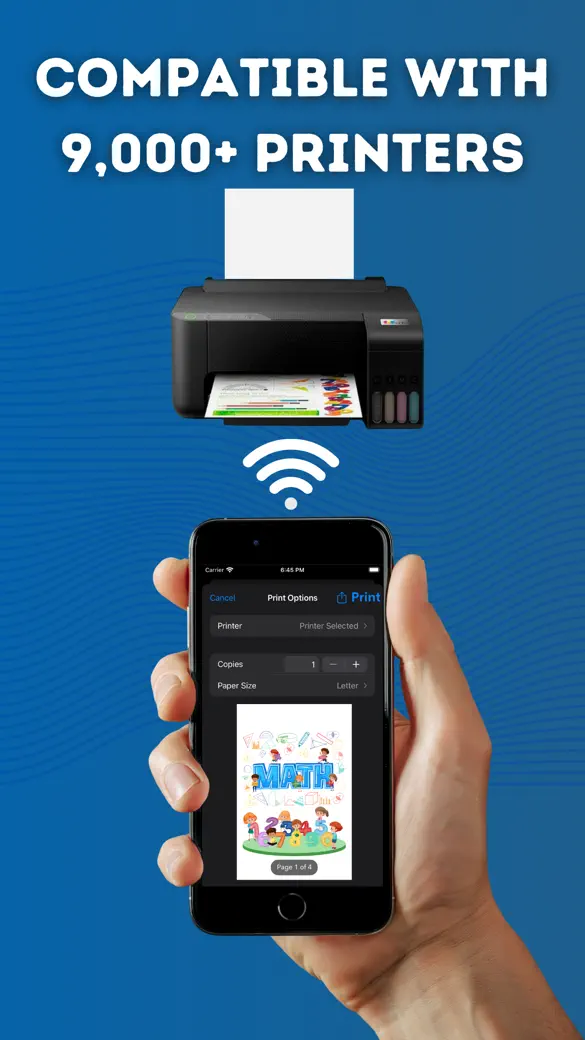
Printer App sends documents, photos, camera scans, and even a full web page from your iPhone or iPad to any AirPrint printer on your Wi-Fi, and throws in passport photo sheets, multi-page posters, photo collages and a handful of PDF tools you'd otherwise need a laptop for.

What can you do with it?
Print what is on your phone
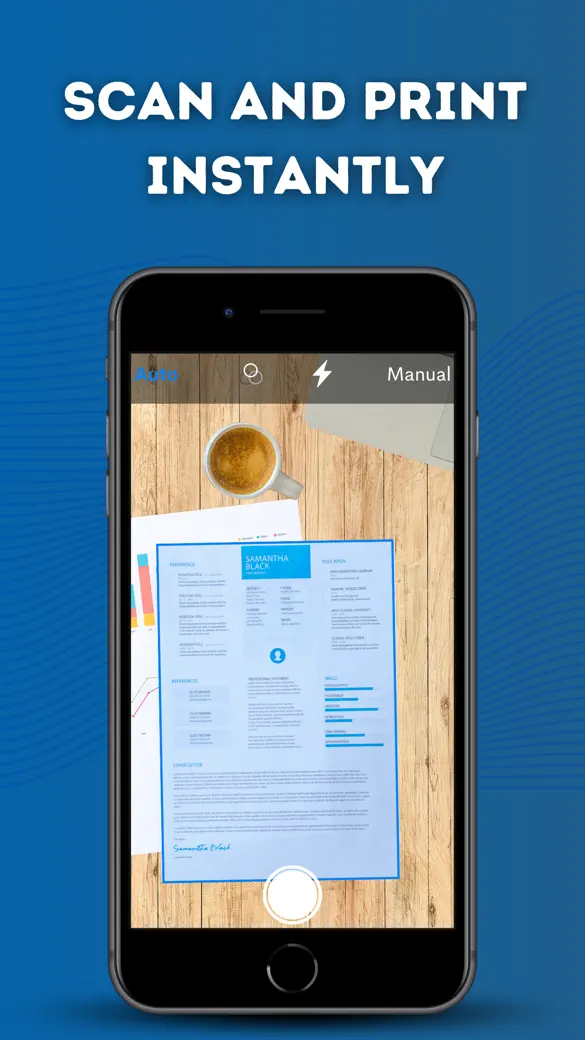
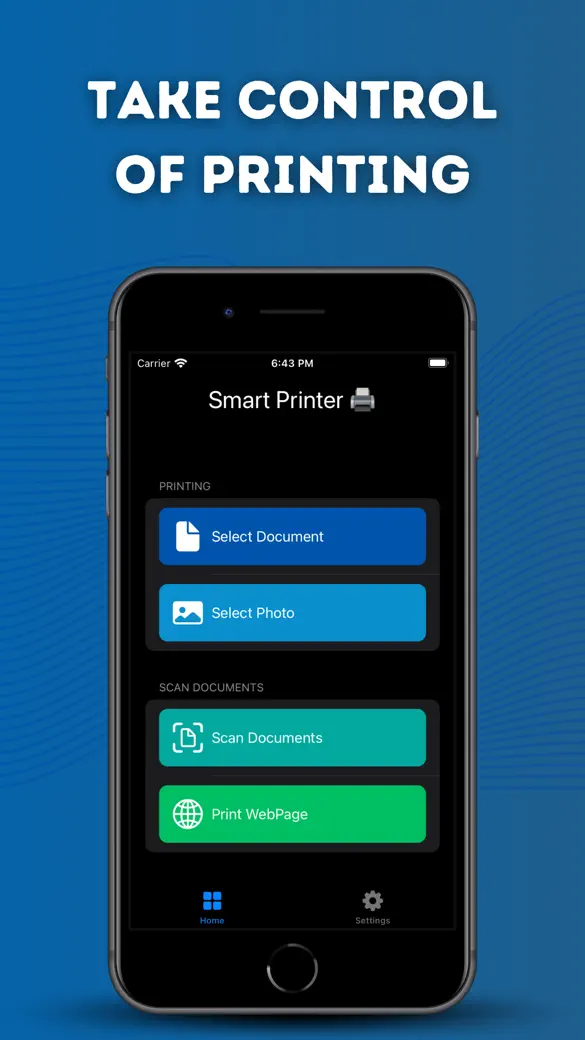
From the Home tab (labeled Print Center in the app) you get Print Document for a PDF, RTF or plain-text file, Print Photo for one picture, Scan Document to photograph paper pages and print them on the spot, and Print Web Page, which prints the whole length of a site instead of whatever fits on screen.
Everything you print gets a stored copy in History, handy for anyone who reprints the same document several times without digging up the original file again.
Lay out photos on paper
Passport Photo tiles an ID photo at the exact size you pick — 21 presets running from 2×2 in up to 35×45 mm, plus a custom millimetre size — onto 4×6 in photo paper, Letter or A4. Photo Collage fits 2, 4, 6 or 9 photos on one Letter sheet. Poster Print blows a picture up across 4, 9 or 16 pages you tape together afterward.
Convert and fix PDFs
Photos to PDF turns any number of photos into one multi-page PDF, free. Pay for Pro and you add OCR to Text and OCR to PDF (a searchable PDF built from photos), Office to PDF for Word, Excel and PowerPoint files, PDF to Images, the PDF Tools set for merging, splitting, reordering and compressing, and Batch Print, which handles many files at once with page ranges, copies and a page-and-sheet estimate.
Quick start
- Make sure the printer is on, supports AirPrint and is on the same Wi-Fi as your iPhone or iPad.
- Open the app and stay on the Home tab.
- Tap the job you need, for example Print Document, and pick the file.
- In the standard iOS print options, choose your printer, the number of copies and the page range, then print.
- Need it again next week? Open History and tap the printer icon next to the entry.
What is free and what Pro adds
The app itself costs nothing. Documents, single photos, scans, web pages, Photos to PDF, History, the Advanced printer tools and the troubleshooting guide are all free, with ads. Passport Photo, Photo Collage and Poster Print each give you one free run before they ask for Pro.
Pro is a subscription, and honestly it only earns its keep if you need OCR, Office files or batch jobs regularly — for an occasional print, stick with free. It gives you unlimited passport photos, collages and posters, plus OCR, Office to PDF, PDF to Images, PDF Tools and Batch Print (still marked beta in the app), and removes ads. Cancel any time from Manage Subscription in Settings.
Privacy, offline use and permissions
- No account, no sign-up. Files, history and settings stay on the device; nothing syncs to a cloud.
- Scanning, OCR, passport photos, collages, posters and the PDF tools all run on the device. Printing itself goes over your local network to the printer.
- Internet is only needed for Print Web Page, for ads in the free version and for App Store purchases.
- Camera: for Scan Document and for taking a passport photo. Photos: to pick the pictures you want to use.
- Local Network: only for the Advanced tab, which searches your Wi-Fi for printers. Ordinary AirPrint printing is handled by iOS itself, no permission needed.
- Tracking: asked once, for the ads. Say no and nothing changes except the ads aren't personalized.
Limits, and who it is not for
- It prints through AirPrint, full stop. If your iPhone can't see the printer in the normal iOS print sheet, this app won't reach it either — the Advanced tab can find some non-AirPrint printers but can't send jobs to them.
- No USB, no Bluetooth printing, no printer drivers, and no printing to a printer in another building over the internet.
- There's no photo editing here: no rotate, crop or brightness, aside from the automatic centre crop in Passport Photo.
- Passport Photo sizes and tiles your picture; it doesn't check the background, the lighting or the head size, so it can't tell you whether an office will actually accept the photo.
- Collages, posters and Photos to PDF build US Letter pages. Print on A4 and iOS scales them, so sizes come out approximate — close enough for a fridge photo, not for a passport photo.
- iPhone and iPad only, iOS 17 or later. No Mac, no Apple Watch, no Android, no widget.
How-to guides for Printer App
Questions people ask about Printer App
Do I need AirPrint to use Printer App?
Is Printer App free?
Does it upload my documents?
Can I print without internet?
Is there an Android or Mac version?
Free and Pro
Free
- Print Document (PDF, RTF, plain text) through the iOS print dialog
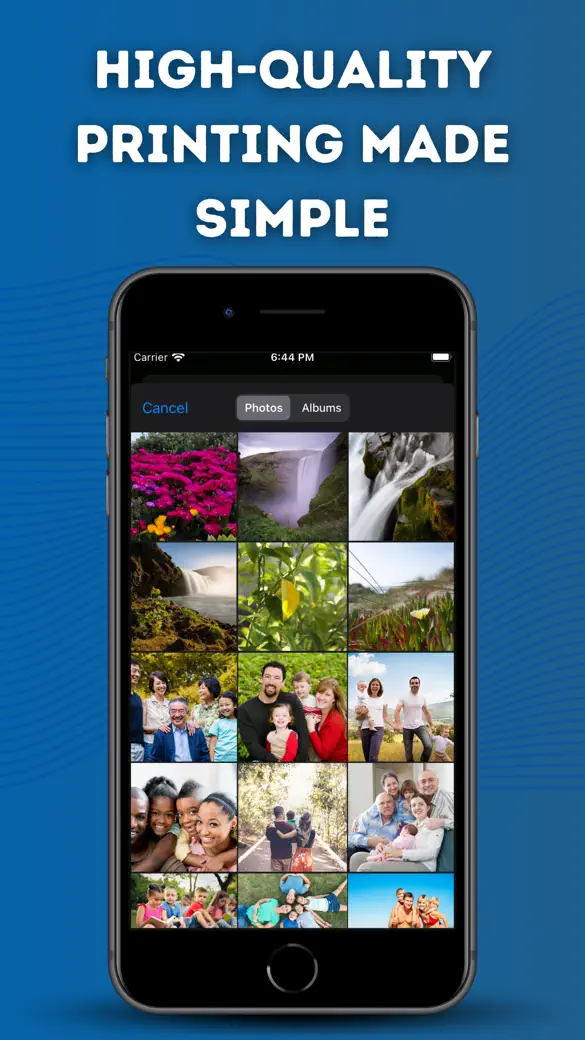
- Print Photo (one photo from the library)
- Photos to PDF (any number of photos into one Letter-size PDF, preview, share, print)
- Scan Document (multi-page camera scan, straight to print)
- Print Web Page (built-in browser, prints the whole page)
- History (list and reprint of stored copies)
- Advanced tab: scan the network for non-AirPrint printers, add a printer by IP, test connection, favorites
- Troubleshooting wizard, Settings, Dark Mode
Pro
- Unlimited Passport Photo, Photo Collage and Poster Print
- OCR to Text and OCR to PDF (searchable PDF)
- Office to PDF
- PDF to Images
- PDF Tools: Merge, Split, Reorder, Compress
- Batch Print (marked BETA in the app)
- No ads (banner and interstitials)
Pro is optional. Everything in the free list works without it.
What's new in 1.6.0
The upgrade screen is now fully localized, with plan names and prices shown in your language. Full-screen ads respect your privacy choices and no longer appear at the wrong moment. Plus small printing fixes.
Privacy and support
Printer App does not require an account. Read the privacy policy and the terms for this app, or write to us if something is wrong.
Made by a small independent developer. Questions? Write to us from the support page.